
Step 1: Open Self Service
- Locate and open the Self Service app on your device.
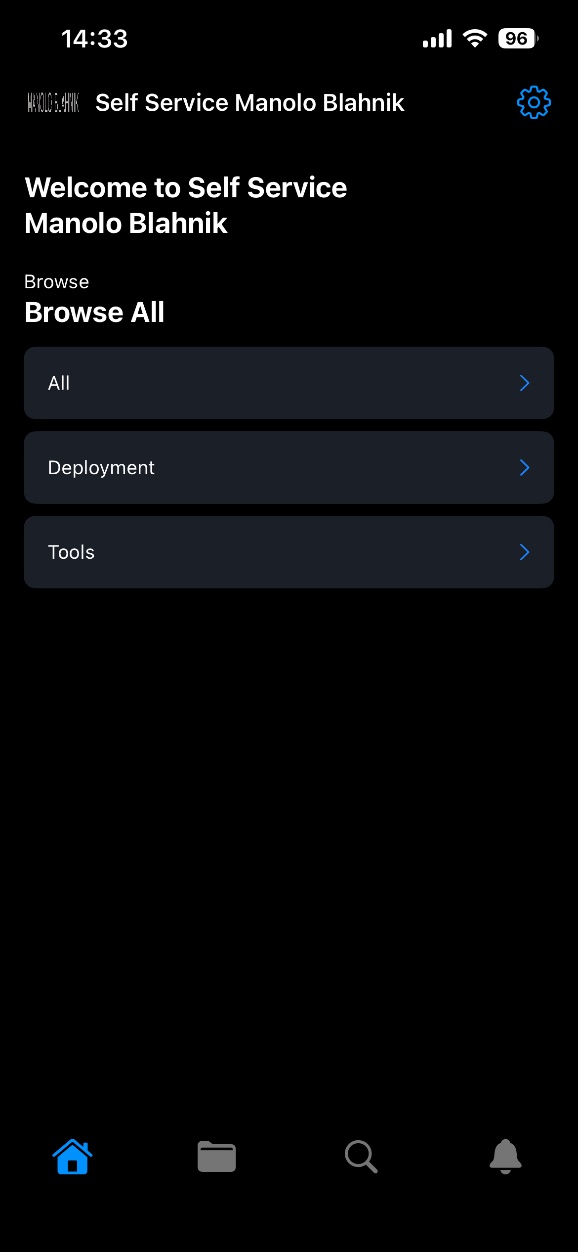
- When the app opens, you will see the Welcome to Self Service screen.
What you’ll see:
- A welcome message (e.g. Welcome to Self Service Manolo Blahnik).
- Three main sections:
- All – view all available applications
- Deployment – apps related to device setup or required installs
- Tools – IT utilities and support tools
Should look something like this:
Step 2: Browse Available Applications
- Tap or click All to view every application available to you.
- Scroll through the list to find the app you need.
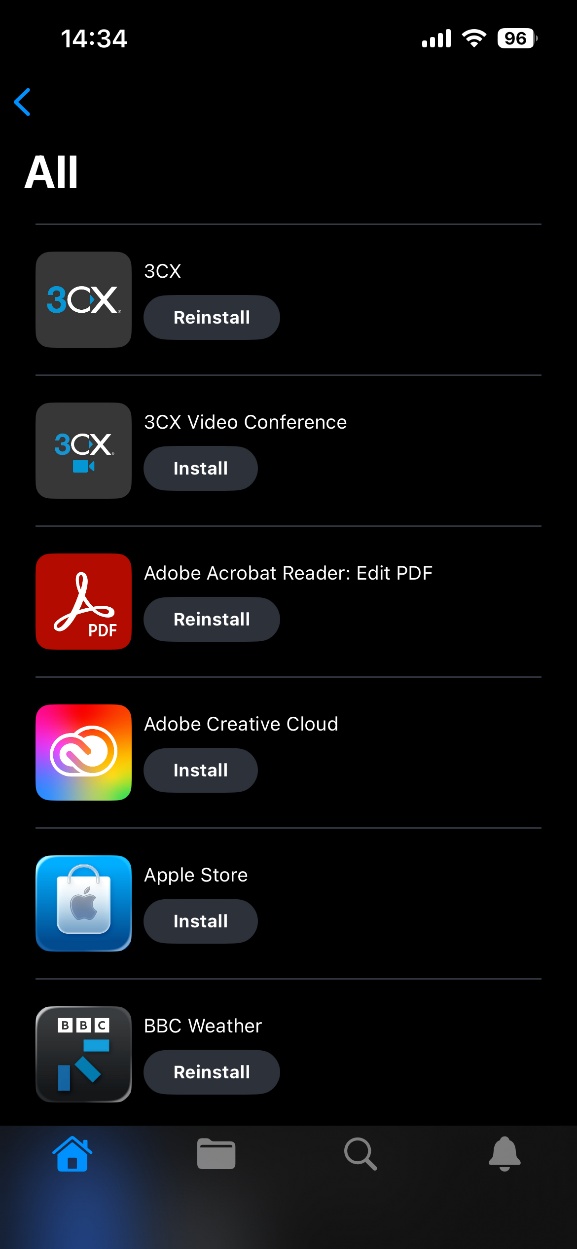
The application list shows:
- App name and icon (e.g. Adobe Acrobat Reader, Adobe Creative Cloud, BBC Weather)
- An action button next to each app:
- Install – app is not currently installed
- Reinstall – app is already installed and can be reinstalled if needed
Should look something like this:
Step 3: Install an Application
- Find the application you want to install.
- Select Install.
- The installation will start automatically.
Important notes:
- Some apps may take a few minutes to install.
- You do not need administrator rights.
- Leave Self Service open until the install completes.
Step 4: Reinstall an Application (If Needed)
- If an app is already installed, you may see Reinstall instead of Install.
- Use Reinstall if the app is not working correctly or needs to be refreshed.
How to Check Installation Progress
- During installation, Go to the home menu to check on the progress of your application – you see a visual guide showing the progress of your application like this:

- Once completed, the button may change or the app will be available on your device.
Troubleshooting
If an app does not install:
- Check your internet connection
- Try clicking Reinstall
- Restart your device and try again – or check for current iOS Updates
- If the issue persists, contact the IT team