
Step-by-step guide for accessing quarantined (held) emails
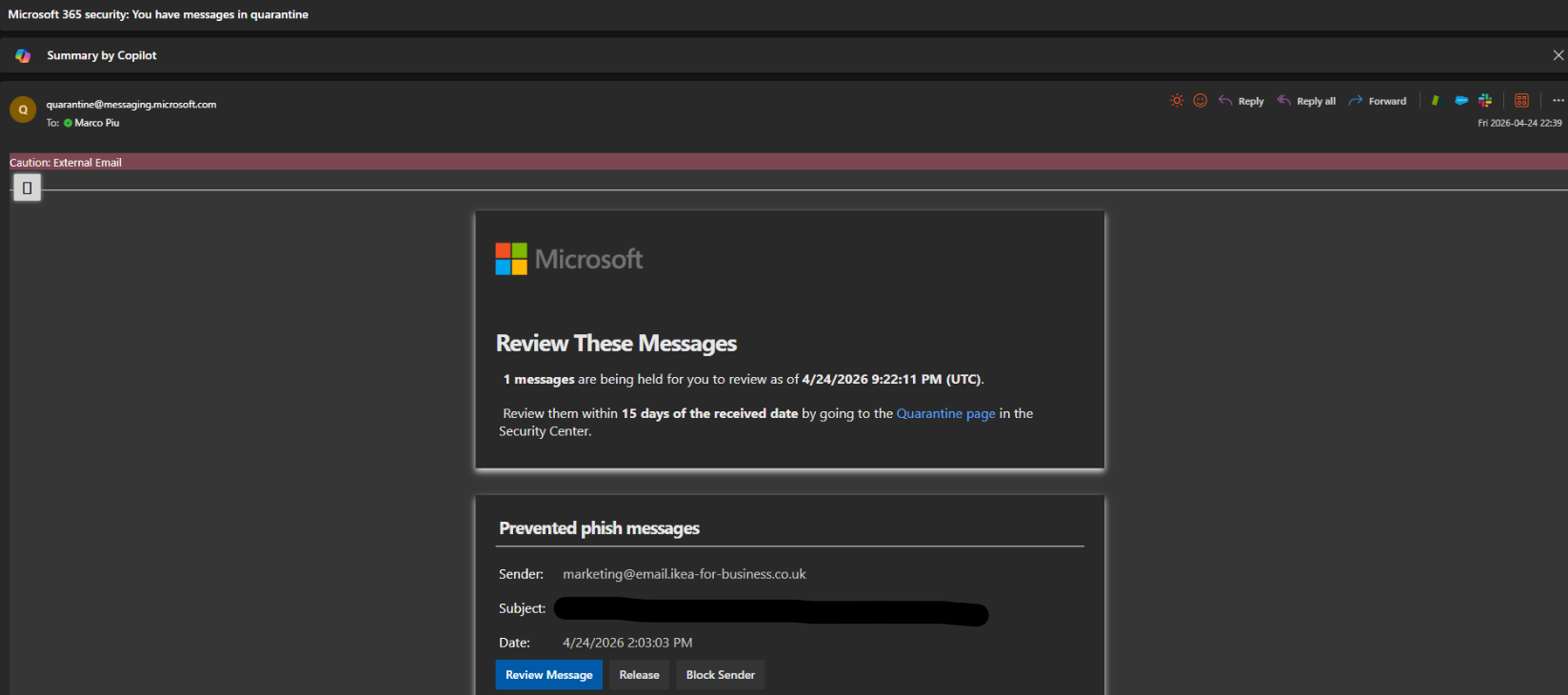
Step 1: Open the Defender notification email
- When Microsoft Defender holds a suspicious email, you will receive a notification email.
- Open that email and select the option to review the message.
Step 2: Sign in to the Microsoft Quarantine portal
- You will be asked to sign in with your work email address and password.
- This is the same sign-in you use for Outlook and Microsoft 365.
Step 3: Review the email details
Once signed in, you will see a summary of the quarantined email:
• Sender
• Subject
• Reason: it was held
You can safely preview this information without opening the email.
Step 4: Release the email (only if you recognise it)
If you trust and recognise the email:
• Select 'Release' or 'Release to Inbox'
• The email will then be delivered to your mailbox
Important safety reminder If you do NOT recognise the sender, do nothing. If you are unsure about an email, leave it in quarantine and contact IT.
Thank you for your cooperation,
IT Team