
As part of our mobile provider upgrade, you'll need to swap your current SIM card for the new one we've provided. The whole process takes less than two minutes and your phone number, messages, and data will not be affected.
Note: Please complete this swap on 10th September, using the new SIM card provided to you in advance. Keep your old SIM card until you've confirmed the new one is working.
Step By Step
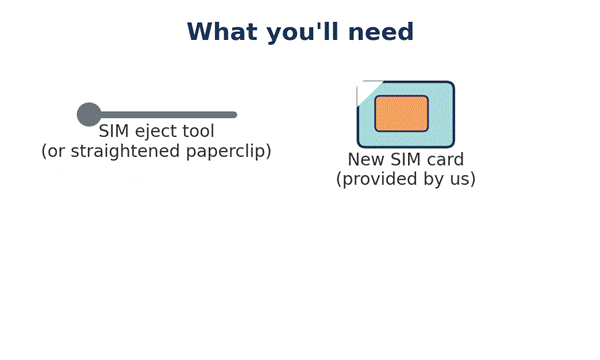
- The SIM eject tool or a straightened paperclip.
- Your new SIM card, provided in advance from the IT Team.
Step 1. Locate the SIM tray
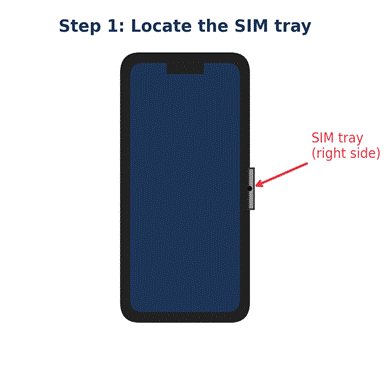
Depending of the iPhone version, the SIM card tray it is in different location. For example on the iPhone 13, the SIM tray is on the right-hand side of the device, roughly halfway down.
Step 2. Insert the eject tool
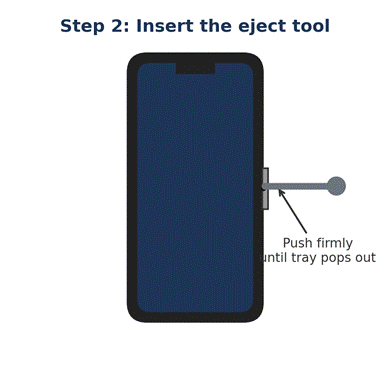
Insert the SIM eject tool straight into the small pinhole next to the tray. Push in firmly until the tray pops out slightly.
Step 3. Remove the tray
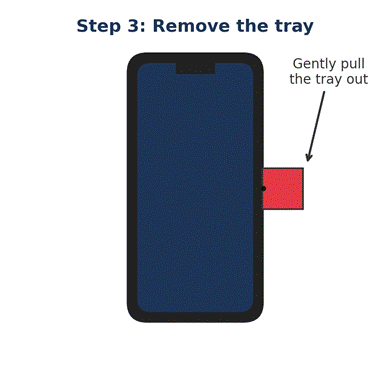
Gently pull the SIM tray fully out of the phone.
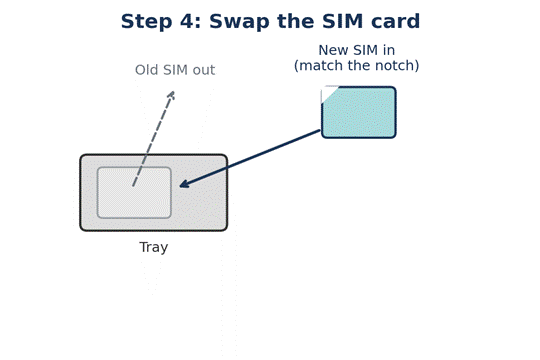
Step 4. Swap the SIM card
Remove your old SIM card from the tray, and place the new SIM card in the same position. Make sure the angled corner (notch) of the card lines up with the notch in the tray — it will only fit one way (Please keept the old one till IT said otherwise).
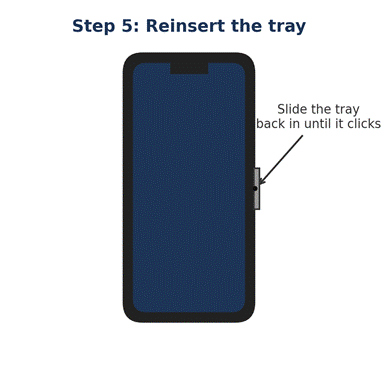
Step 5. Reinsert the tray
Slide the tray back into the phone in the same orientation it came out, until it clicks fully into place. Don't force it, it should slide in smoothly.
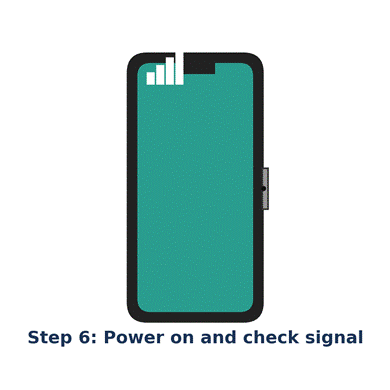
Step 6. Power on and check your signal
If your phone is off, turn it back on. Within a minute or so you should see signal bars and your carrier name appear at the top of the screen, confirming the new SIM is active.
Good to know
- Your phone number stays exactly the same.
- No messages, photos, or data will be lost, this only affects the physical SIM card.
- If you don't see a signal after a few minutes, try restarting your phone.
- Keep your old SIM card safe until you've confirmed everything is working.
Please any issue please contact IT by following the normal process by access our Systems & IT Support portal (save this as a favourite), or Email Systems & IT Support (support@manoloblahnik.freshdesk.com) which can be found in the Global Address List in Outlook.
Thank you,
IT Team